
Wednesday, December 17, 2025 From rOpenSci (https://ropensci.org/blog/2025/12/17/beyond-github/). Except where otherwise noted, content on this site is licensed under the CC-BY license.
rOpenSci makes heavy use of GitHub for our projects and services, including software peer-review. GitHub is by far the most widely used git or code-hosting platform, and the combination of its popularity and freemium services have made it central to open-source and R communities. However, for a variety of reasons, some of our community members or potential members may prefer or need to use other platforms. These reasons may include concerns about being forced into Microsoft’s AI division, a desire to support platforms with different ownership or business models, which are based in other countries, or a general desire to support alternatives to avoid the risk of hegemony.
GitHub remains our primary code platform and we have no immediate plans to migrate, but we are keenly aware of the trade-offs our community is considering and that they vary from member to member. We want to provide opportunities to help users not using GitHub to participate in rOpenSci activities, and we also want to continually explore alternative platforms and models for the future.
In this post, we describe one approach which allows rOpenSci members to use alternative platforms while still staying connected to rOpenSci operations on GitHub. This is most applicable to current or future developers of rOpenSci peer-reviewed packages, but we hope also serves as a useful guide for those testing approaches for managing code across multiple platforms more generally.
This approach involves “mirroring” repositories from GitHub to another platform. We’ll start by exploring what this means and will end with some guidance on setting up multiple mirrors and some words of warning.
🔗 Some background
🔗 Code Mirroring
Different remote instances of a Git repository are often referred to as “mirrors”, which are nothing more than duplicate copies. Every remote instance is a mirror. We will generally presume here that a repository has a primary remote home (such as GitHub), and some number of other mirrors. The primary remote home is also a “mirror”, but it is generally useful to treat that primary home differently to other, secondary mirror locations, as explained below.
The sole aim of this post is to explain how you can set up additional, secondary mirror locations beyond GitHub alone. You can still retain GitHub as your primary mirror, or migrate your primary mirror elsewhere if you like. However you structure your code mirroring, the use of multiple code hosting sites instead of a single platform decreases your dependence on that single platform. Should that platform become unusable or undesirable for you, you’ll already have the infrastructure in place to help your coding practices survive and thrive across multiple platforms.
🔗 Mirroring versus Migration
The term “mirroring” is used here, and throughout the official git documentation, to imply a duplication of code, generally from local to remote locations. “Migration” implies moving code away from one location to a new location. Migration is neither necessary nor encouraged here, yet some sites nevertheless use this term, presumably as an implicit encouragement to do exactly that. Wherever “migration” is used below, please just think of a process of “mirroring” in which you code will always remain intact in the original location too.
🔗 Updating Code Mirrors
Code mirrors are only ever updated through git push events from local versions, or from other git events on the primary remote mirror.
Change events originating on the primary remote are generally incorporated in a local version via git pull, and then pushed out to all mirrored versions.
A git pull command should only ever be applied to the primary remote version, and never to any alternative mirror versions.
In this diagram, the large yellow arrow between the primary remote and local represents the only connection where both push and pull events are allowed.
All other arrows are push events only, and code is never pulled from non-primary mirrors.
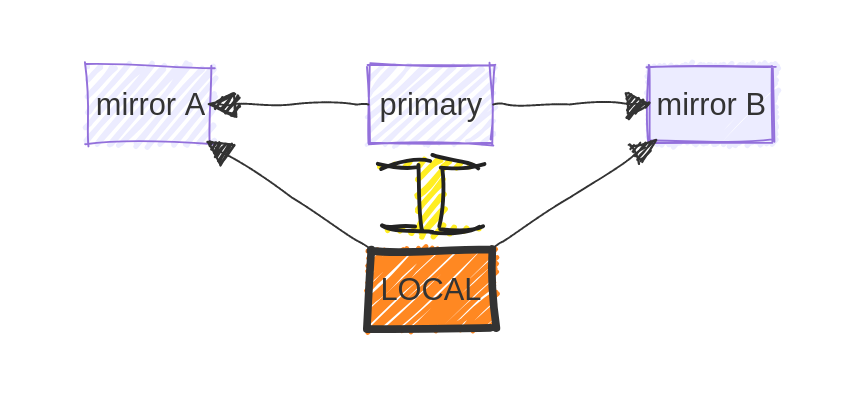
Git interaction directions between local and remote repositories.
🔗 Mirroring to Codeberg or GitLab
Let’s get started! The first step is to set up a repository mirror on a non-GitHub platform. The easiest platforms to mirror to are currently Codeberg and GitLab, both of which have inbuilt options to mirror repositories directly from a large number of other platforms, including GitHub. Both of these platforms can also mirror additional information including issues, issue labels, pull requests, and releases. There are, however, some limitations, such as that GitHub’s auto-links within and between issues and pull requests may be lost.
Codeberg uses the term “migration” rather than mirroring. We use the same term throughout this section, but keep in mind that it really is just a “mirroring” process, and everything can and should remain intact in the original location from which you are “migrating”. To start the process, click the large “+” button on the top right of the main menu bar, and select “New migration”.
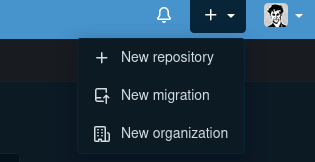
Codeberg new repository migration button.
That will then open up a grid of options from where you want to migrate your repository.
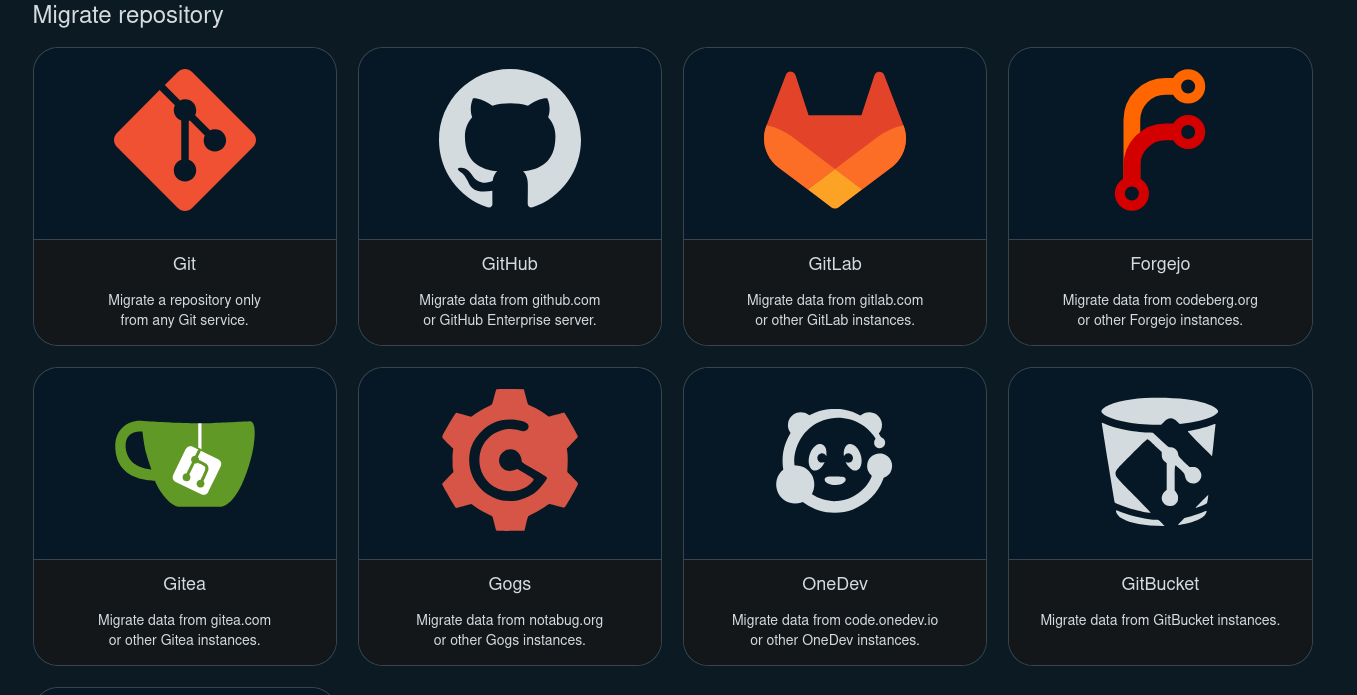
Codeberg repository migration options.
To migrate from GitHub, click the symbol to open a migration and fill in some details. You can also paste a GitHub token into “access token” (ensuring that it has at least read access to all aspects you want transferred), and migrate almost all other aspects, including issues, pull requests, and releases. Note that the migration process may take 10 minutes or more.
On GitLab, the equivalent “+” button is on the top left, where “New project/repository” should be clicked.
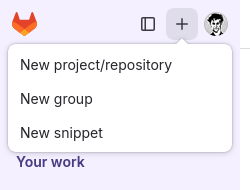
GitLab new repository button.
That will lead to a series of options, in which “Import project” should be clicked.
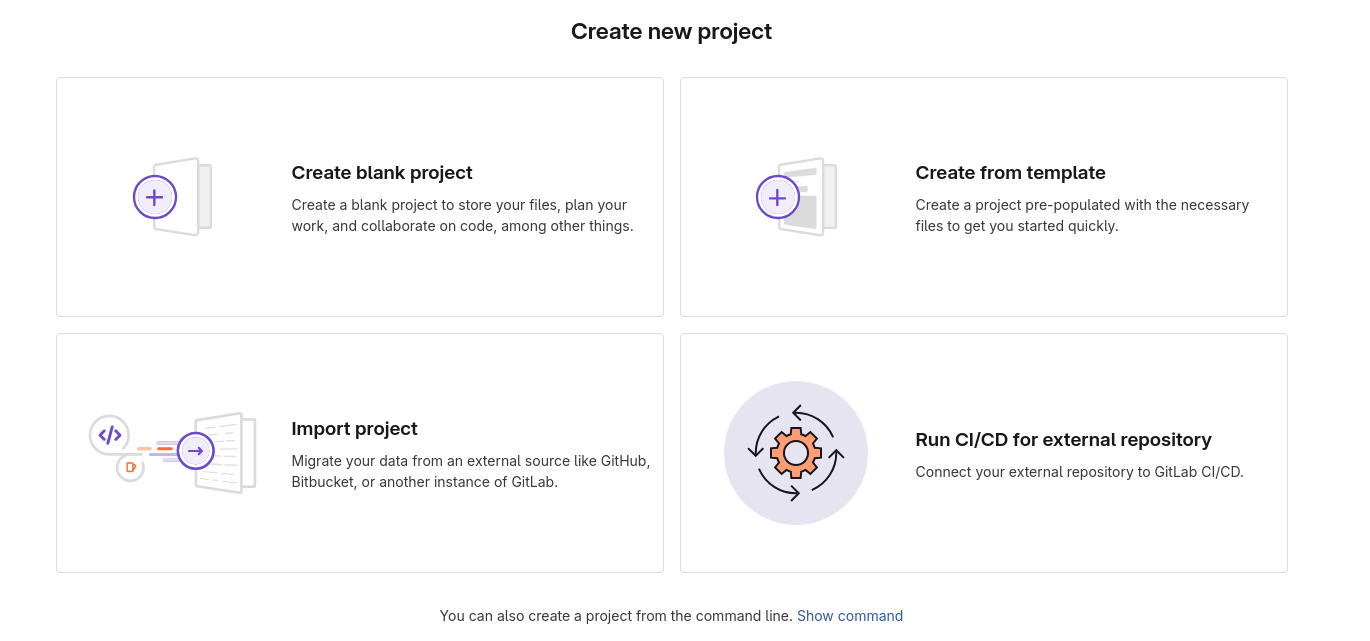
GitLab repository import options.
That then leads to a list of platforms from which you can import projects, including code, issues, pull requests, releases, and other information. GitLab transfers issues, pull requests, tags, and releases by default, with even more possible through provision of a GitHub access token. As with Codeberg, this transfer can take some time (10-20 minutes or more).
🔗 A note on transferring issues
Issues, pull requests, and other information on GitHub can be transferred both to Codeberg and GitLab, but only when a repository is first “migrated” (Codeberg) or “imported” (GitLab).
Both Codeberg and GitLab enable all information on all issues and pull requests to be transferred across, although generally without hyperlinks other than those those linking within or between issues of the same repository. All other hyperlinks, including any to GitHub users, or to other repositories, will be lost. The transfer will be of information at the time the migration or import was initiated. From that time point on, any activity via issues or pull requests on any hosting platform will be specific to that platform only.1
🔗 Migrating elsewhere
No other platforms currently offer the one-click migration functionality of Codeberg or GitLab. To migrate in all other cases, you’ll need to:
- Create a new repository on the desired platform.
- Set a
git remoteURL to the new destination. git pushto new remote.
The git remote web page provides more detail on working with remotes.
We are also not currently aware of any platforms other than Codeberg and GitLab which offer inbuilt ability to import additional information on issues and pull requests, although other people have implemented things such as issue mirroring from GitHub to SourceHut. Other code hosting platforms like SourceHut, or the distributed hosting system tangled, do not provide facilities for directly transferring or mirroring issues or pull requests (and in fact generally don’t even have such things, as they really are specific to the GitHub platform; SourceHut, for example, implements its own systems of “todos” and “patches”).
🔗 Mirroring: Managing one repository across multiple platforms
The goal here is to move from having code hosted on a single platform to distributing code across multiple platforms through mirroring. This reduces the risk of dependence on a single platform creating a single point of failure. Mirroring also allows you to use alternative platforms to GitHub, while still benefiting from GitHub operations used by other organizations (like rOpenSci!). To achieve this goal, after setting up your mirrors you’ll next need to add the new remote locations to your local git configuration, and then synchronize those remotes.
As depicted in the first figure above, all remotes other than your “primary” code home should be considered push mirrors only, and never pull.
In the rare case that conflicts from other sources arise, you may need to git push --force to other remotes (or the safer version, git push --force-with-lease).
You should never git push --force to the main branch of your primary source.
🔗 Adding multiple remotes
For each additional remote source, you’ll need to add a remote URL with git remote add.
There are many ways to do this2.
The pure Git way of managing multiple remote sources is to take advantage of git remote set-url --add to add additional URLs to a single remote identifier.
Jeff Kreeftmeijer’s blog post details how to do that safely, to ensure only one primary remote is configured to fetch, while allowing push events to all others.
An alternative option would be to initially create an additional remote like git remote add other https://codeberg.org/ropensci/my-package.
A single git remote can also be assigned to multiple URLs.
The first URL must be set with git add (or git set-url) to add or update the URL of an existing remote.
Additional URLs can then be added by using git set-url --add followed by the name of the remote.
For example, git set-url --add other https://gitlab.com/ropensci/my-package would then specify both the Codeberg and GitLab URLs with the single other remote.
Running git push other <branch> will then push that branch to both of these remote URLs.
🔗 Synchronizing multiple remotes
As with the git remote setups described in the previous section, there are several ways to synchronize multiple remote instances of a single repository.
The pure Git way is to use local commands like those described and linked to above, to git push changes to all remote locations.
(This is the approach recommended by GitHub, but GitHub is an anomaly among code hosting platforms in offering no easy ability to interact with other platforms.)
However, both Codeberg and GitLab offer mirroring services to enable these sites to be used as a primary site, and to mirror all code changes directly across to alternative sites such as GitHub.
Codeberg has a “Mirror settings” option near the top of the general repository “Settings” panel, where you can easily specify an arbitrary number of mirror locations, and click “Sync when commits are pushed”.
The GitLab settings are under “Settings” → “Repository”, where you should see options for “Mirroring repositories”.
Depending on how you configure your other repositories, you may need to add additional information such as public SSH keys to authenticate git push events.
Common options are described in GitLab’s documentation.
Finally, if you want to keep GitHub as your primary home while avoiding having to remember to use git pushall or whatever other local setup you may have or need, you can easily set up a GitHub action to automatically push your code across to any other locations.
While there are “marketplace” actions available to do this, we do not recommend those, as the procedure is very straightforward, and implementing your own is generally easier.
An example is this workflow which is run on every push event to the main branch and mirrors the github.com/ropensci/osmdata repository across to both codeberg.org/ropensci/osmdata and gitlab.com/ropensci/osmdata.
🔗 Advertising your primary code home
Regardless of how your structure and disperse your code across multiple platforms, it’s generally useful to maintain a single, primary “home”. (This is of course not at all necessary; if you enjoy dividing your attention across different platforms, please do so, and ignore this section.) We recommend advertising your primary code location at the top of your README.md document, something along the lines of this example, and clearly stating whether or not you will respond to “issues” (or whatever platform-specific interactions may be called) on any other platforms.
If your primary home is not GitHub, then you can create an additional GitHub-specific .github/README.md file which will then be displayed on GitHub only, while all other platforms will display the root README contents.
An example is Doug Kelkhoff’s github.com/dgkf/options package which has a .github/README.md explaining that GitHub hosts a read-only mirror of the repository, and directing people to the primary location at codeberg.org/dgkf/options.
That primary location then displays the full contents of the root README file.
This trick only works for GitHub - all other platforms display the root README file at all times.
🔗 Words of warning
Whatever approach you decide to explore, you’re bound to realise that managing code distributed across multiple platforms is more difficult than on a single site. Many features you might be used to on GitHub, for example, may not be implemented on other platforms, or may have other names and inconsistent behaviours. One example is “Releases”, which GitHub associates with Git tags, and then enables you to upload additional data to be associated with a release. This whole procedure has little to do with Git, and a lot to do with design decisions by GitHub. Other platforms offer similar functionality, but even then with caveats like:
Codeberg can mirror all GitHub releases, but does not do so by default. You need to:
- Go to repository “Settings” to enable releases
- Explicitly
git push --tags codeberg <branch-name>to push all Git tags, as they are not by default included in Codeberg’s mirroring process.
You should then see a mirror of all GitHub releases, including all (“LFS” = “Large File Storage”) data. From that point on, you will be able to create releases with additional data on Codeberg just like on GitHub.
GitLab also does not mirror releases by default, and does not (currently) automatically track tags like Codeberg does. To mirror releases on GitLab, you need to.
git push --tags gitlab <branch_name>, just like on Codeberg, to explicitly push all Git tags.- Manually go through each tag and issue a new release, for which you can retrospectively set the release data to be the same historical date as the original GitHub release date.
There are many other ways, small and large, by which different code-hosting platforms and systems differ from one another. Ongoing maintenance across different platforms will always present challenges, but we hope to have given you enough information here to get you started.
🔗 rOpenSci repos on Codeberg, GitLab, or elsewhere
If you’re an author of an rOpenSci package, you can follow the steps described above to mirror your code to any location on Codeberg, GitLab, or to any other platform. Please let us know if you’d like any of these platforms other than GitHub to act as the primary home for your code, and we’ll update our internal data accordingly.
We also maintain the organizations Codeberg/ropensci and GitLab/ropensci.
Note, however, that mirroring to either of these locations must be initiated by rOpenSci staff, only after which can we grant you administrative access over your repositories.
To reduce the burden on rOpenSci staff, and to enable you to retain full control over your repositories, we therefore recommend that you mirror GitHub/ropensci repositories to other locations (such as within your personal repositories) on these alternative platforms to which you have direct administrative access.
If you would nevertheless like your GitHub/ropensci package mirrored to either Codeberg/ropensci or GitLab/ropensci, the best way is to ping @ropesnci/admin from a GitHub issue in your repository, and we’ll start the process.
There are tools for continuous mirroring such as GitHubCodebergMirror, but there is likely some fragility in these setups. An alternative is the approach adopted by the zig language on Codeberg of simply ensuring the new primary mirror has unambiguous issue numbering. ↩︎
Yet another approach is to define a custom command for
git pushto call a local script. This can be done by adding some “gitbin” directory to a default systemPATHvariable (in.bashrc, for example, asexport PATH="$PATH:$HOME/.gitbin"). Git will automatically recognize any scripts within$PATHnamed with the prefix “git-”. It is best to name locally-defined Git commands differently to standard Git commands. For example, a file namedgit-pushallplaced in that folder will be called by thegit pushallcommand. The file itself could contain any of the options described in this StackOverflow answer. Even more arcane alternatives include my own git push bash script which recreates the now obsolete push-by-password functionality of GitHub, while also pushing to all other listed remote sources. ↩︎
Filed under
Suggest an edit
Open a pull request
